About Fenex
A private notebook with a publish button.
Write for yourself. When a page is worth sharing, send it out with no name attached - and take it back just as easily.
Why it's different
Your notes are not on our server
Not one page of them.
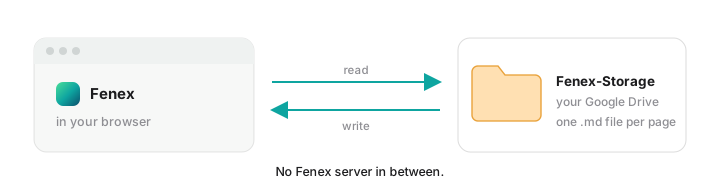
Every page is a .md file in your own Google Drive. Open them in any editor. Leave Fenex tomorrow and nothing is trapped.
Connect more than one Google account and each gets its own row, its own Fenex-Storage folder, and its own trash. Drag a page between them to move it.
The one thing that does pass through a server of ours is publishing - a small relay makes the public copy. Your private pages never touch it.
Publishing copies, so your own file stays private
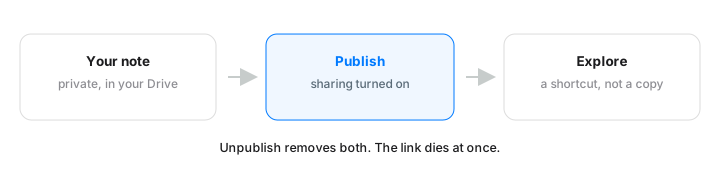
Publishing sends the page's text to a public folder as a copy. Your own file is never shared - its permissions are not touched, and nobody can reach it through Google Drive.
Unpublishing is instant. The copy is deleted the moment you press the button. What search engines already indexed is outside anyone's control, so decide before you publish.
Published pages are locked. Because the public page is a copy, edits don't flow into it. Unpublish to edit, then publish again.
Cloud only. Notes kept in "This device" can't be shared.
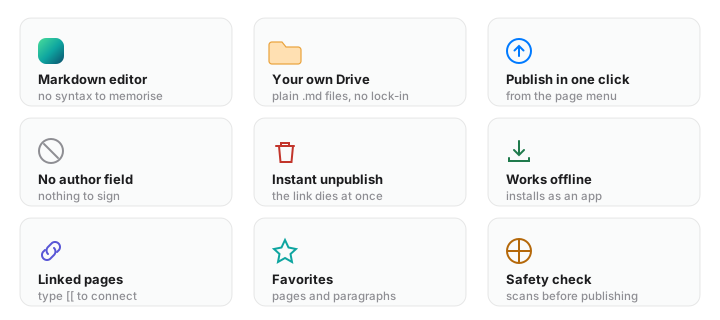
There is no author field
No accounts to display, no profiles, no pen names.
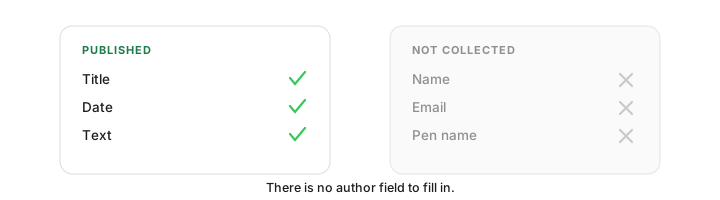
One limit we can't remove. The file stays in your Drive, and Drive shows its owner. For real anonymity, publish from an account that isn't tied to you.
Two published pages can't be linked to each other. Each copy carries a one-way code for the account that sent it, so that you can take your own pages back down - but that code is stored where only Fenex can read it. A stranger reading the public folder cannot tell which pages share a sender.
Fenex checks before you publish. It scans for emails, phone numbers, ID and card patterns, addresses, and attachments - and strips EXIF data from every image you insert.
Bring what you already wrote
Drop files onto a storage location and they become pages.
| You drop | What happens |
|---|---|
.md files | One page each |
| An Obsidian vault folder | Folders become page hierarchy. [[wiki links]] become real links |
A Notion export .zip | Unzipped here in your browser. The hash on every title is stripped, links reconnect |
Nothing is uploaded to us to be converted - it all happens on your device.
FAQ
Do I need an account to read? No. Browse Explore with no sign-in. You only sign in to write.
Where are my notes? Fenex-Storage in your Google Drive. One .md file per page, metadata in YAML front matter.
Does it work offline? Yes. Fenex installs as an app and caches itself. Syncing resumes when you reconnect.
How do I install it? Chrome or Edge: the install button in the title bar. iPhone: Share, then Add to Home Screen.
What happens when I unpublish? The link dies and the page leaves Explore. Your note stays in your Drive, untouched.
Are attachments shared too? Yes, while published. Unpublishing revokes them with everything else. 25MB per file.
I deleted a page but it's still in Explore. What now? Open Explore and choose My posts. Everything you have published is listed, and anything whose page is gone from this device is marked. Take it down from there.
Can I dictate instead of type? Yes, the microphone in the toolbar. The speech is turned into text by your own device - the audio never leaves it and never reaches us. Your browser downloads a small speech model the first time, which takes a minute. If your browser can't do it on-device, Fenex refuses to record rather than sending your voice somewhere.
What does it cost? Nothing. Your notes live in your own storage, so there is almost nothing for us to run.
Shortcuts
| Action | Keys |
|---|---|
| Move a block | Alt Shift ↑ ↓ |
| Link a page | Type [[ |
| Undo / redo | Ctrl Z / Ctrl Shift Z |
| Zoom | Ctrl + - 0 |
Select text to format. Right-click to insert lists, tables, code, and files.
Tables can be resized by dragging a border, and cells can be merged. The header row is optional. Plain tables stay plain markdown so other editors can read them.
Long pages. The compass in the toolbar keeps the paragraph you are writing in the middle of the screen instead of at the bottom edge.
Reordering. Drag pages and storage locations to rearrange them. On a phone, press and hold first.
More writing about markdown, notes, and keeping your own files: Fenex blog
Privacy Policy · Terms of Service · Questions or reports: withtommykim.lab@gmail.com