
How to Remove Location Data From Photos — And How to Stop Doing It Manually
A photo from your phone contains a lot more than the photo.
Where it was taken (GPS coordinates), what took it (device model), and when, down to the second. That bundle is called EXIF. It's genuinely useful for organizing your own library — but the moment you send that photo to someone, it travels with it.
One picture taken at home is your home address as coordinates.
This post covers two things: how to check and remove it yourself, and how to stop having to do that every time.
First, see what's actually in your photos
Before removing anything, take a look. Seeing it lands differently than reading about it.
- Windows — right-click the file → Properties → Details tab. Scroll down for the GPS entries (latitude, longitude)
- macOS — open in Preview, then Tools → Show Inspector. If there's a location tab, it will show the spot on a map
- iPhone — swipe up on a photo in the Photos app to reveal the map and capture info
- Android — Google Photos → the photo → info (ⓘ)
If a map appears, that photo knows exactly where it was taken.
How to remove location data from photos
1. Windows — strip it from Properties
The fastest route, and no extra software needed.
- Right-click the file → Properties → Details tab
- Click "Remove Properties and Personal Information" at the bottom
- Choose "Create a copy with all possible properties removed" and confirm
Your original is untouched and you get a clean copy. You can select many files and do them all at once.
2. macOS — remove the location in Preview
Open in Preview, then Tools → Show Inspector → location tab, and click "Remove Location Info." Note that this clears only the location. The device model and capture time stay.
To clear everything, the terminal works too:
# with exiftool installed — remove all metadata
exiftool -all= photo.jpg
3. iPhone — turn it off at share time
Switch it off right before sharing:
- Select the photo → Share button
- Tap "Options" at the top
- Turn "Location" off, then share
The drawback is that it's per-share. Forget once and it goes out anyway.
4. Android — remove on share, or never record it
In Google Photos you can turn off location when sharing, or go further and disable location tagging in your camera settings so it's never written in the first place. That last option is the most reliable.
The trade-off: you lose the map view of your own library too. If you like browsing travel photos on a map, that stings.
The real problem is "every time"
Knowing how and actually doing it every time are different things.
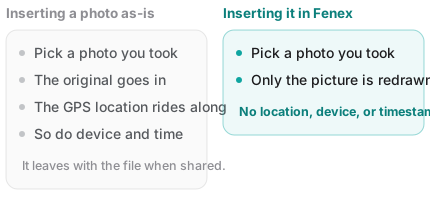
Picture the moment you add an image to a note. A receipt, a whiteboard, a prescription label, one page of a contract. You shoot it in a hurry and paste it in a hurry. Almost nobody stops to strip EXIF there.
And most note tools keep the file you gave them, as-is. That isn't bad design — leaving originals untouched is the correct default, especially for tools that work on a local folder.
The problem comes later. When you share that note, hand over a backup of the whole vault, or pass along a single file — the coordinates go too. Nothing ever removed them.
Fenex strips it on the way in
Fenex doesn't insert your original file. It redraws the image onto a canvas and inserts that result instead.
A canvas carries pixels only. Location, device and capture time don't come along. What goes in is effectively a redrawing of the photo, so there's nothing left to remove later.
- Applies the same whether you pick a file or paste an image
- Resolution is preserved — nothing is downscaled
- PNGs stay PNG; everything else is re-encoded as JPEG
Nothing feels different in use. You add a photo and it just goes in — minus the coordinates.
The point isn't "one more feature." It's that you don't have to remember. In security, any step a human must perform every single time eventually gets skipped.
What this still doesn't cover
To be straight about it: stripping EXIF doesn't touch what the photo itself shows.
- The view out the window, a shop sign, a license plate
- The business name and address printed on a receipt
- Other windows visible in a screenshot
Metadata removal blocks what gets attached automatically. It doesn't inspect what's in the frame. Photos you're about to show someone still deserve one look with your own eyes.
For what it's worth, when you publish a page in Fenex it scans the text for emails, phone numbers, national ID, card and account number patterns and addresses, and shows you a confirmation first — a guard against slips, not a block. It still can't read what's inside a picture.
Wrapping up
| Situation | What to do |
|---|---|
| Check a photo you already have | Windows Properties → Details / macOS Inspector |
| One photo, quickly | Windows "Remove Properties and Personal Information" |
| Never record it at all | Turn off location tagging in camera settings |
| Photos going into notes | Use a tool that strips it on insert |
The most reliable approach is making it something you don't have to remember. Any step that depends on human diligence is the first thing to go on a busy day.
If you put photos into notes often, open Fenex and drop one in. No sign-up — just connect Google Drive, and your writing stays as .md files in your own Drive.
Related reading: